Creating & Editing Content
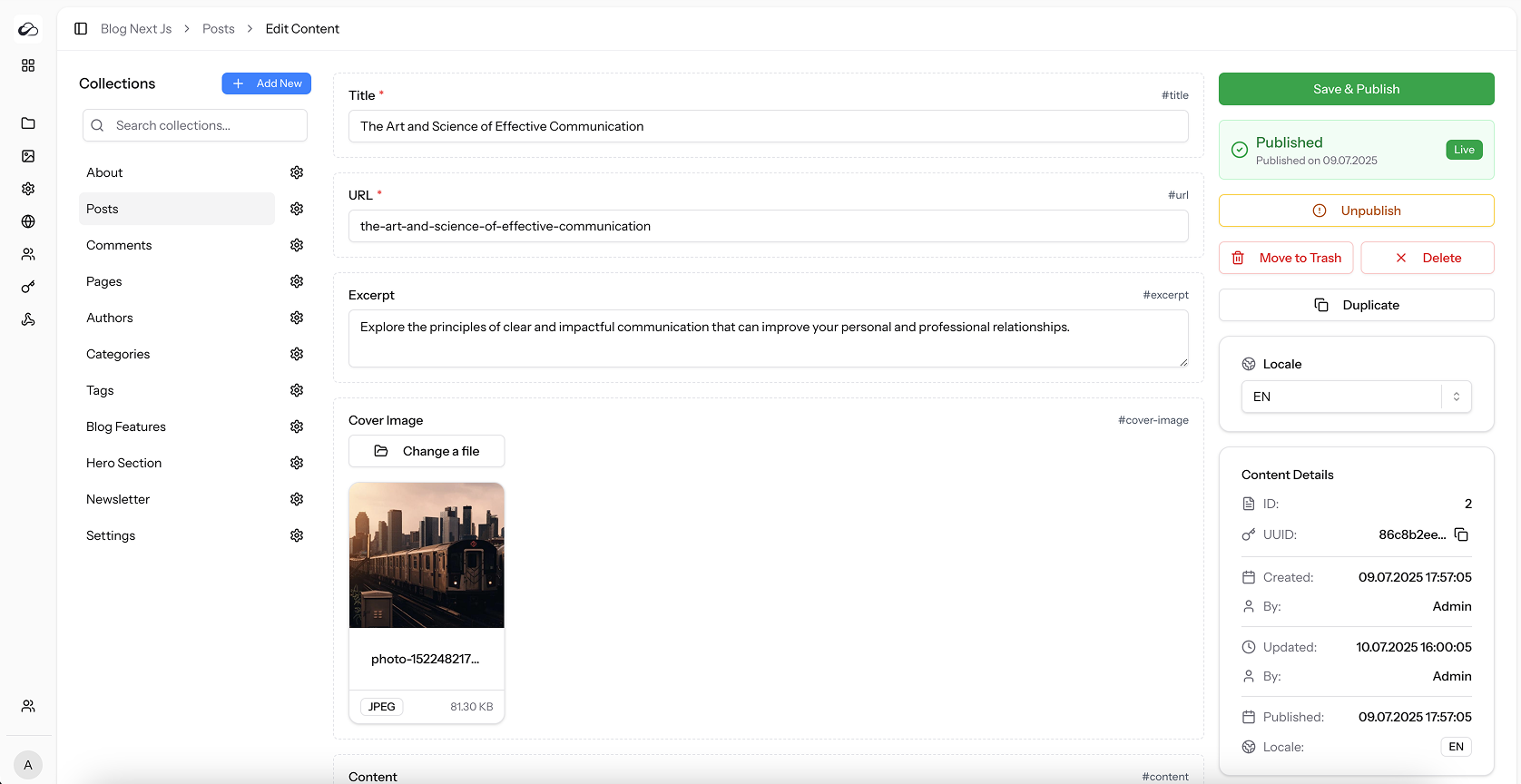
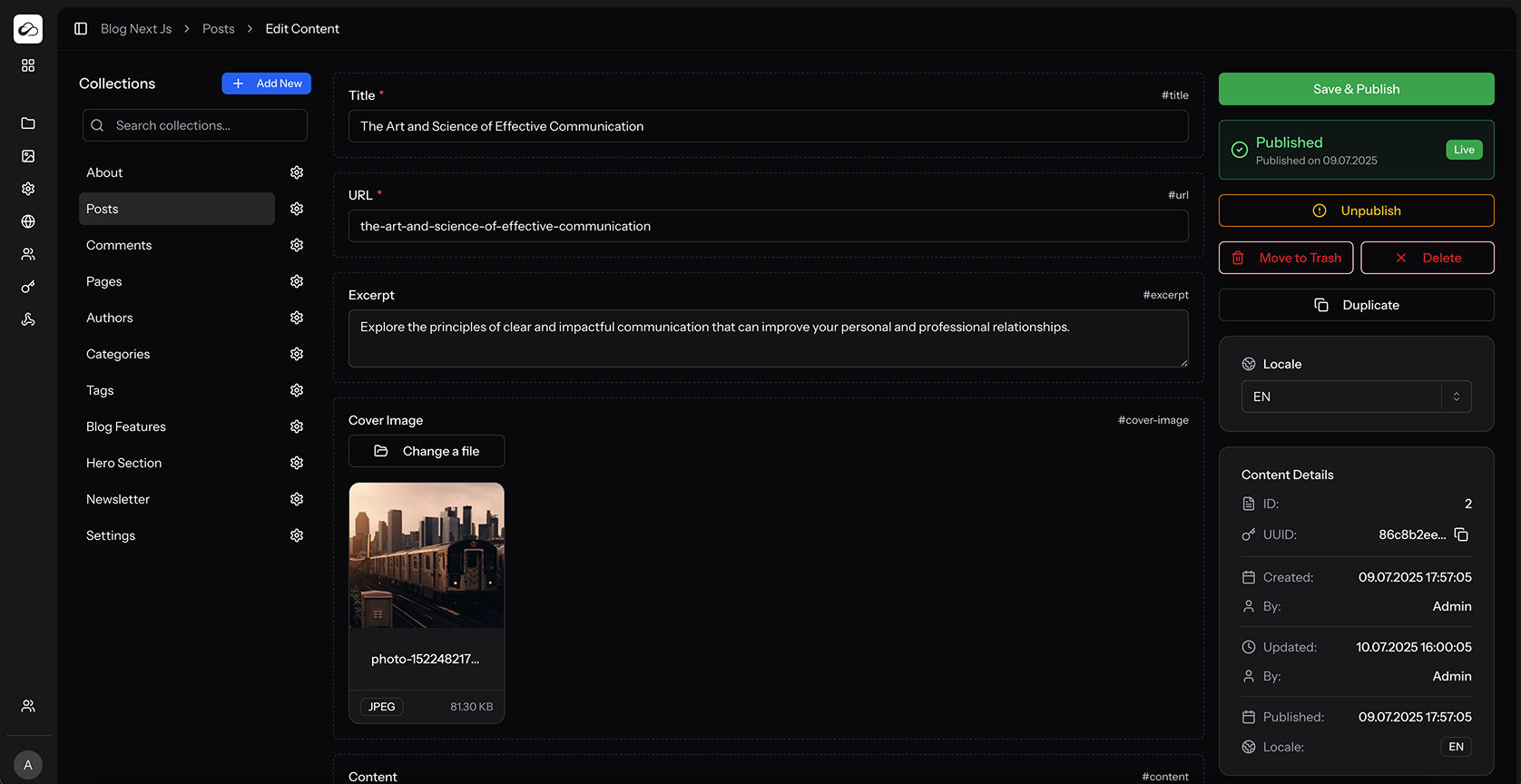
This guide walks you through the Entry Form-the place where editors add or update records inside a collection.
Opening the Form
- Click Create New on the Content List.
- OR click an existing row to open it in edit mode.
- For single record collections you are taken directly to this form when selecting the collection.
Form Anatomy
| Section | Details |
|---|---|
| Title bar | Shows collection name (and slug for singletons). |
| Locale Switcher | Appears when your project has multiple locales. Switching reloads the entry in that language. |
| Sidebar status | Published / Draft badge. When a published entry has unpublished edits, the UI shows that the live API still serves the last published version. |
| Save actions | Save as draft updates the working draft only. Save & Publish mints a new version and makes it live. On create, draft save also offers Save and close / Save and create new. |
| Other actions | Unpublish, Discard unpublished changes, Duplicate, Move to Trash, Delete (where allowed). |
| Versions | Sidebar panel listing immutable publish versions. Preview a snapshot, edit label/description, or revert. |
Working with Fields
The Entry Form renders every field defined in the collection.
| Field type | Editor widget |
|---|---|
| Text / Long Text | Input / Textarea. Repeatable fields add Add Line & Trash buttons. |
| Rich Text | Lexical editor by default; optional markdown mode per field. |
| Slug | Auto-generates from a source field; can be read-only if you tick Readonly. |
| E-mail / Number / Color | Native validation (HTML5/email, numeric, colour picker). |
| Enumeration | Single or multi-select. |
| Boolean | Toggle switch. |
| Date / Time | Date-picker with optional time picker or range mode. |
| Media | Opens Asset Library modal; selection order is preserved. |
| Relation | Picker modal; choose entries from another collection with search & filter. |
| JSON | Raw JSON textarea with validation. |
Repeatable fields
When Repeatable Field is on, values are stored as an array of objects with a value key. UI shows Add Line and delete controls.
Validation & Error Handling
Validation runs client-side (basic checks) and server-side.
If a rule fails:
- Error message appears below the offending field
- Toast shows that save failed - check the form for errors.
Saving vs publishing
In 4.0, saving and publishing are separate steps:
| Action | Result |
|---|---|
| Save as draft | Updates the draft only. Marks the entry as having unpublished changes. Does not change what the public API returns for state=published. |
| Save & Publish | Saves the current draft as a new version snapshot and makes that version live. |
| Unpublish | Takes the entry offline for live reads. Older versions are kept. |
| Discard unpublished changes | Throws away unpublished draft edits and restores the draft from the live version (or clears it if nothing is published). |
On create, you can save a draft or publish right away. For existing entries (including singletons), use Save as draft while editing, then Save & Publish when you want changes to go live.
The dashboard shows when the draft differs from the live version (for example a Draft dirty badge).
Entry State & Lifecycle
- Draft – working copy;
state=publishedAPI reads return 404 until first publish (or after unpublish). - Published – a live version snapshot is serving
state=publishedreads (list and get). Draft edits stay private until the next publish. - Trashed – soft-deleted; hidden from the normal list, can be restored.
- Deleted Permanently – removed; cannot be undone.
Versions
Every successful Save & Publish (or API publish) creates an immutable version (number, optional label/description, snapshot payload).
From the versions UI you can:
- Browse history (newest first)
- Preview a prior version’s field values (read-only)
- Revert to a prior version (restores draft from that snapshot and publishes a new version)
- Edit a version’s label / description (snapshot itself is immutable)
Retention is controlled by CONTENT_VERSIONS_PER_ENTRY (default unlimited). See Environment Variables.
API: Versions, Publish, Discard draft.
Duplicating Entries
When editing, choose Duplicate. A copy is created with the same field values as a draft.
Trash & Deletion
- Move to Trash – soft delete; restore from the content list by filtering to Trashed.
- Delete Permanently – bypasses trash; asks for confirmation.
Locale Management
If your project has multiple locales:
- Use the Locale dropdown in the toolbar to switch language.
- Entries are stored per locale.
Translations
When your project has multiple locales, you can link entries as translations of each other:
- Open the Translations Panel: Click the Translations button (under the Locale selector in edit mode)
- Link a Translation: For locales without translations, click Select to choose an existing entry
- Navigate to Translations: Open the linked translation from the panel
- Unlink Translations: Use Unlink in the dashboard (API only supports link)
Singleton collections auto-link new locale entries into one translation group on create.
Linked translations share a translation_group_id. See API Translations and Link translation.
Translations are independent entries-each has its own content and publication state. Linking only creates a relationship for navigation and API queries.