Content List
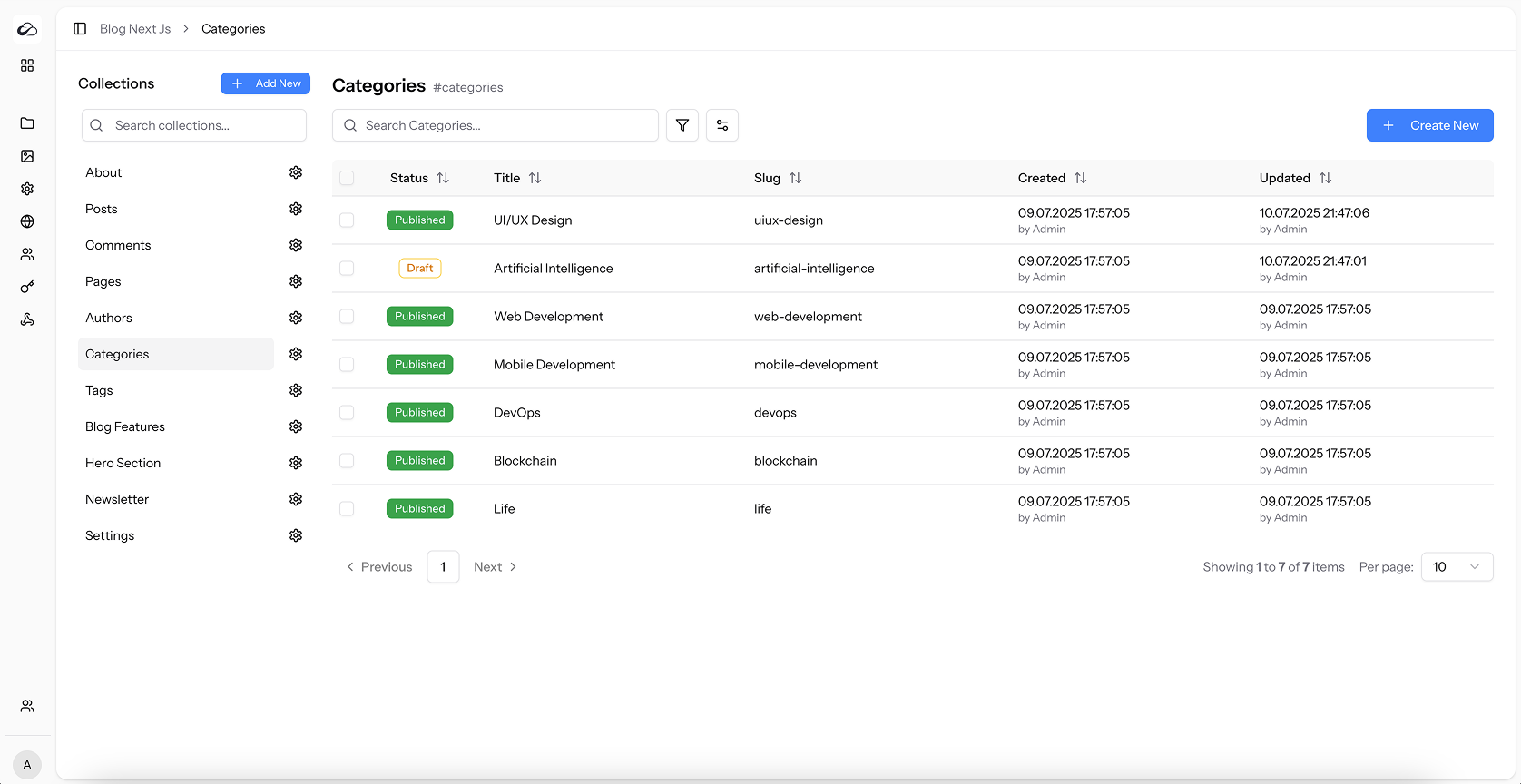
The Content List is your command-center for browsing, searching, and managing all entries inside a collection.
Layout at a Glance
| Area | What it does |
|---|---|
| Toolbar (top) | Global actions: Create New, bulk Publish / Unpublish, Trash / Delete / Restore |
| Search bar | Full-text search across every visible column. |
| Column headers | Click to sort ↑↓, click the filter icon to open field-specific filters. |
| Rows | Each record. Click a row to open it in the Entry Form (unless it’s in the Trash). |
| Checkboxes | Select one or many entries for bulk actions. |
| Pagination | Navigate pages & change “items per page”. |
| Settings | Show / hide columns and reset the table view. |
Table preferences (column visibility, filters, sorting, page size, search) are stored in localStorage per user + collection, so your view is preserved when you return.
Searching & Filtering
- Search bar – type to instantly find entries.
- Column filters – available on:
- State – Draft / Published / Trashed (publication state, not a custom field named status).
- Date columns – pick a single date or a range.
- Active filters bar – shows chips for each filter; click × to remove or Clear All to reset.
Sorting & Column Management
- Click a header once to sort ascending, again for descending.
- Use the Settings dropdown to toggle any column on/off.
Reading Data in Cells
| Field type | Cell behaviour |
|---|---|
| Text / Long Text | Truncated after 30 characters. Hover for the full value. |
| Rich Text | Icon – click for a read-only preview. |
| Boolean | “Yes” or “No”. |
| Date / Time | Formatted per field options. |
| Enumeration | Selected value(s) inline. |
| Media | Thumbnail grid. |
| Relation | Link icon – modal lists related entries. |
| Repeatable fields | First value + “(+N more)”. |
Relative timestamps may show with a full-date tooltip on hover.
Selecting Entries & Bulk Actions
| Action | Conditions | What it does |
|---|---|---|
| Create New | Always (hidden for singletons that already have every locale) | Opens the Entry Form. |
| Publish | Selected entries | Mints a new version from each draft and makes it live. |
| Unpublish | Selected entries | Clears the live published pointer; versions retained. |
| Trash | Non-trashed selected | Soft delete. |
| Delete | Non-trashed selected | Permanent delete. |
| Restore Selected | Trashed selected | Restores from Trash. |
Each action confirms, then refreshes the table. Remember: list edits that only save drafts still need Publish to go live — see Creating & Editing Content.
Singleton Collections
If a collection is marked single record collection, opening the content list redirects to the entry form (preferring the default locale when multiple locales exist).