Collection Settings
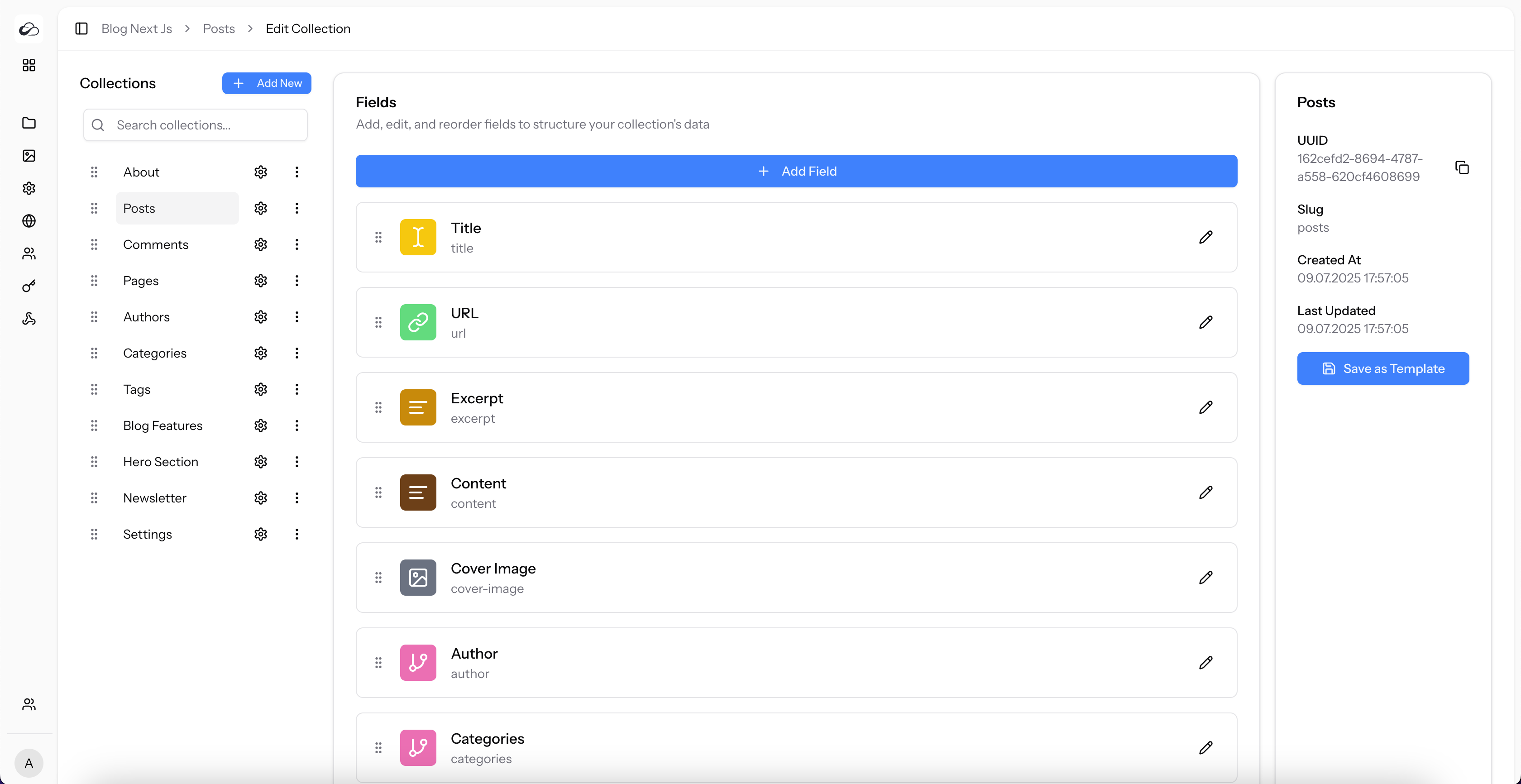
Once a collection is created, you can manage it from the collection's settings page. To access the settings page press ⚙️ (settings icon) next to the collection name.
Changing the Order of Collections
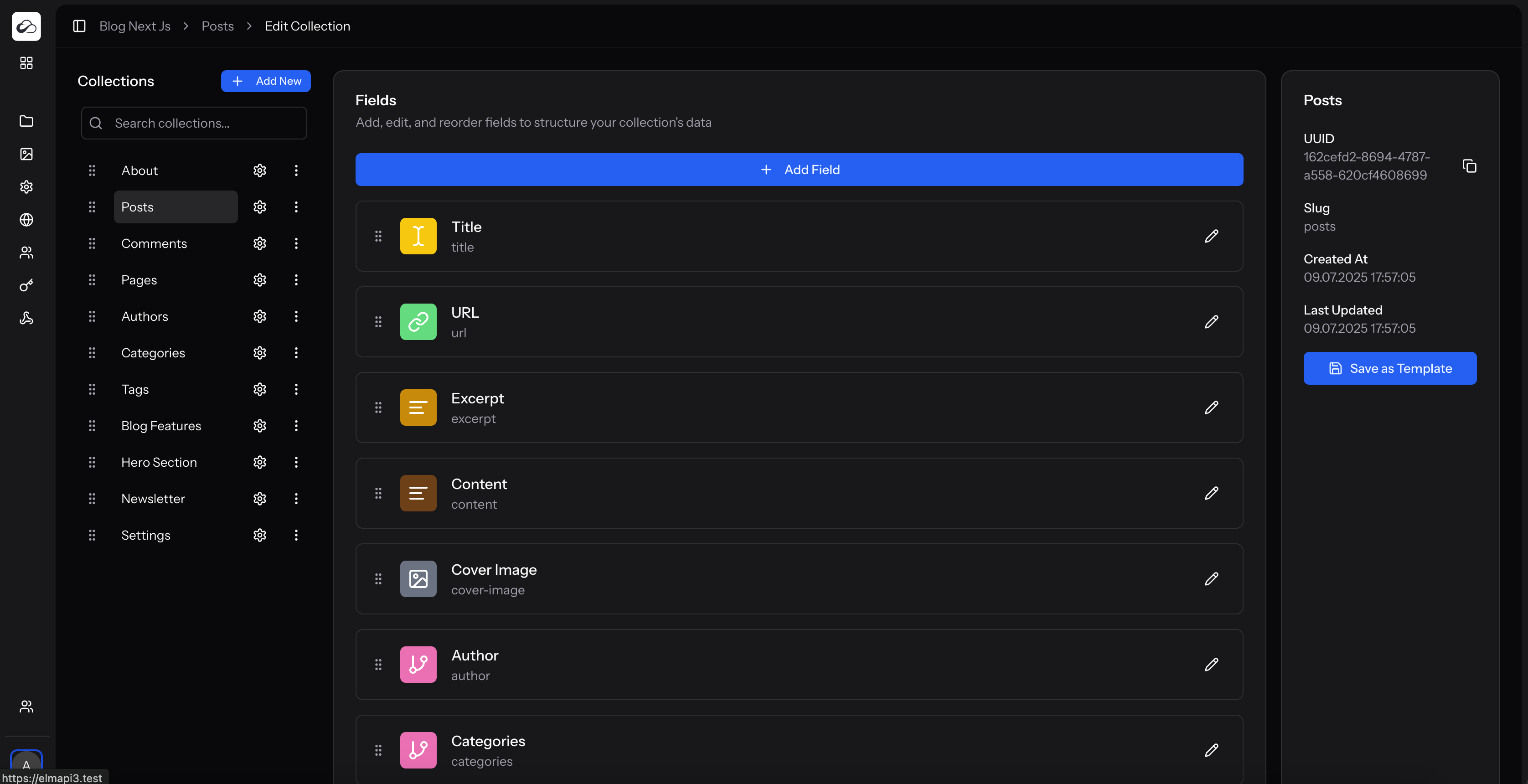
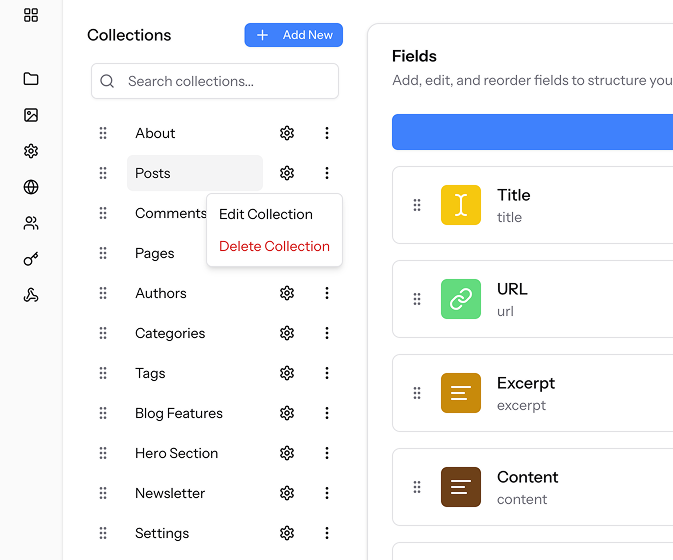
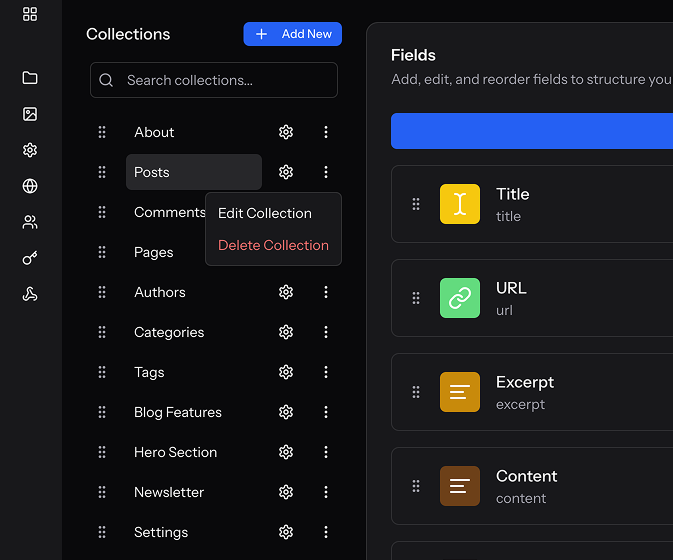
You can reorder collections at any time: grab the ⋮⋮ drag-handle that appears next to a collection’s name (visible on the edit screen), then drag and drop it up or down in the sidebar. The new order is saved instantly.
Updating the Collection Details
Next to every collection name in the sidebar you will see a ︙ (More-menu) icon. Click it to open a small action menu with two useful options:
- Edit Collection – Opens the Edit Collection modal where you can rename the collection and change its slug.
- Delete Collection – Permanently removes the collection and all its entries. A confirmation dialog is shown to prevent accidents.
Collection Details
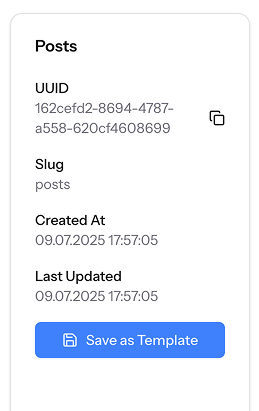
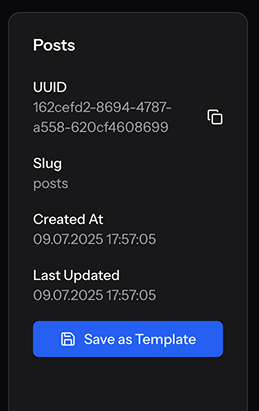
The card on the right side of the screen provides useful information:
- UUID: A unique identifier for the collection, which can be used for API calls. You can copy it with a single click.
- Slug: The API identifier for the collection.
- Timestamps: The creation and last updated dates for the collection.
Saving a Collection as a Template
If you have designed a collection structure that you want to reuse in other projects, you can save it as a template.
- Click the "Save as Template" button in the collection details card.
- Give your new template a name.
- Click Save.
Your new template will now be available in the "Create New Collection" dialog under the "Choose from template" option.
Fields
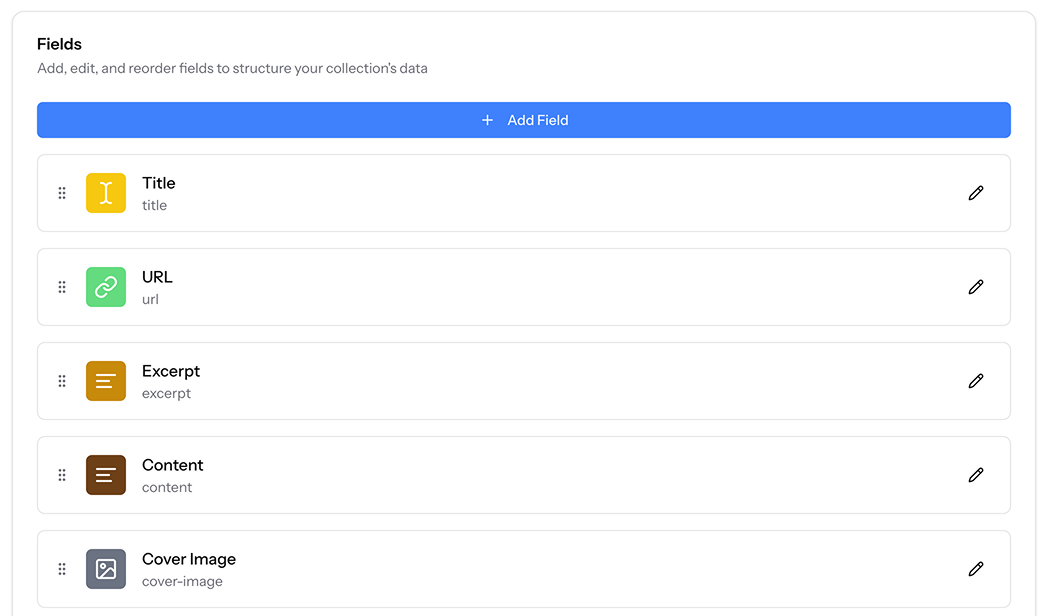
Fields are the building blocks of your content. They define the data that can be stored in a collection.
Field List
The field list is a list of all the fields in the collection.