Creating a Collection
You can create collections from the project sidebar.
- From your project's dashboard, locate the Collections section in the left sidebar.
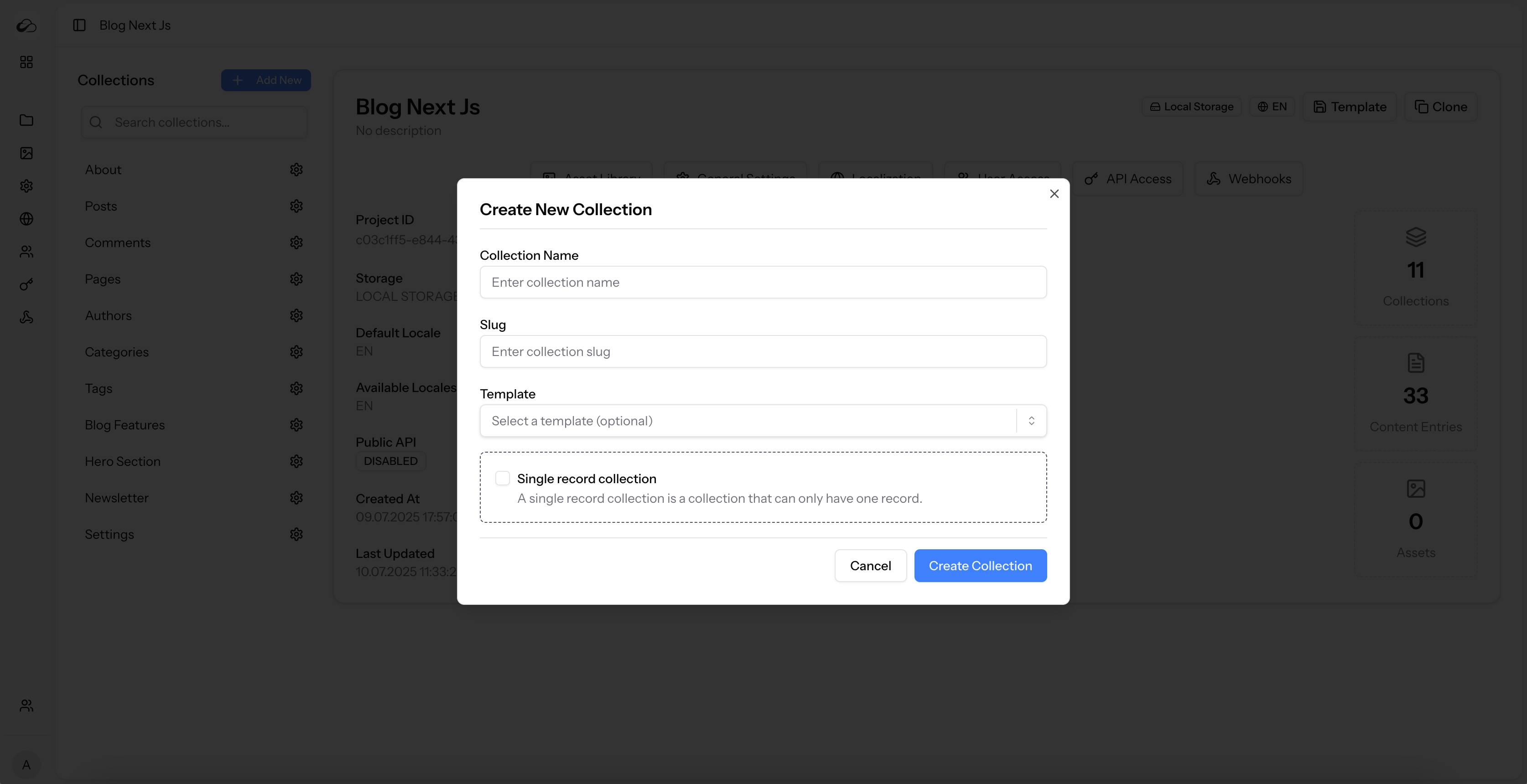
- Click the + Add New button next to the "Collections" heading. This will open the "Create New Collection" dialog.
Collection Details
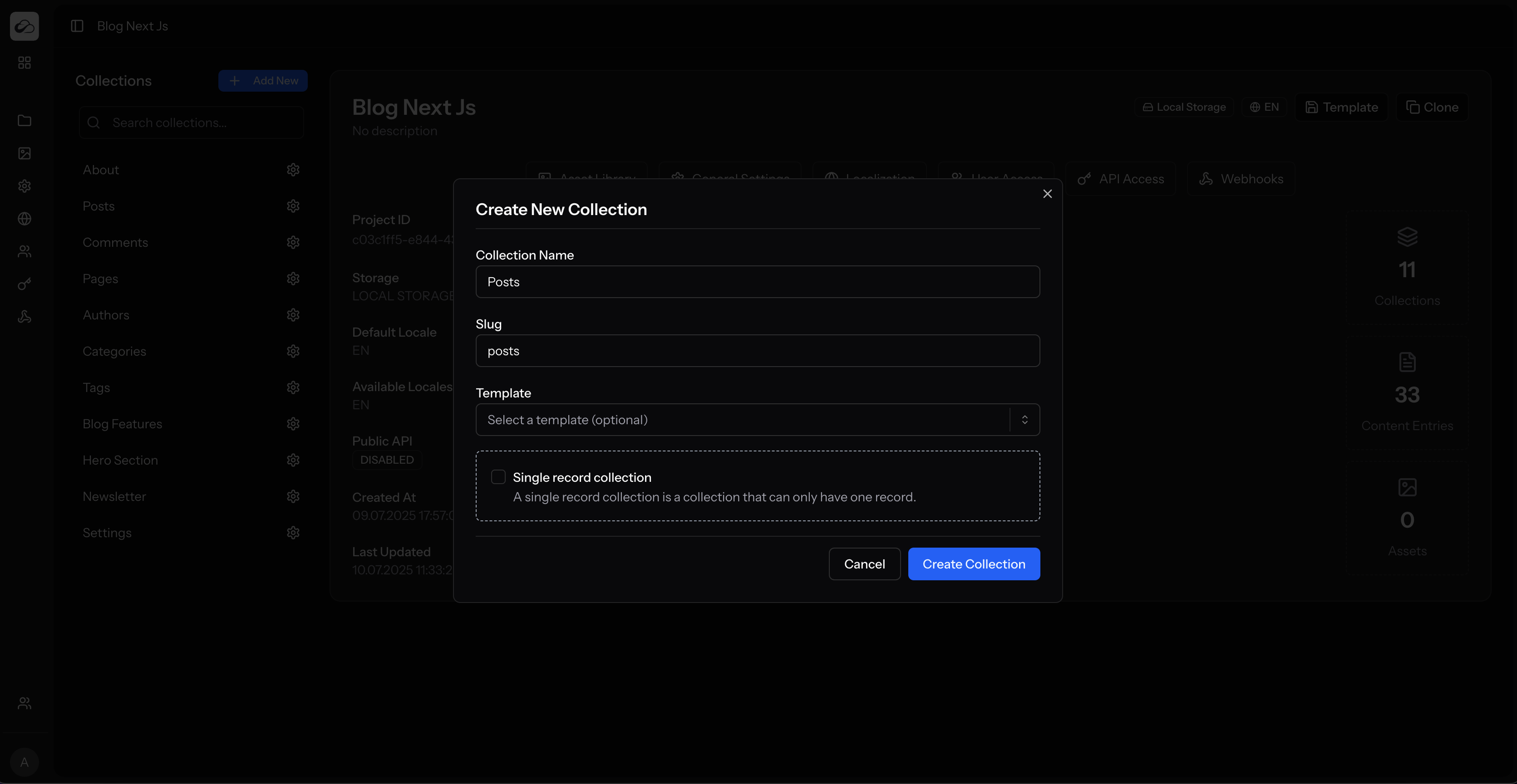
- Name: A human-readable name for the collection (e.g., "Blog Posts", "Product Catalog").
- Slug: A URL-friendly version of the name, used in the API. This is generated automatically from the name but can be customized.
Collection Type
- Multiple Entries: The standard collection type, designed to hold many entries (e.g., a list of blog posts or products).
- Single Entry: A special type of collection that holds only one entry. This is perfect for managing one-off pages like a "Homepage" or an "About Us" page where you only need a single, editable record.
Creating from a Template
You can also kickstart a new collection using a pre-defined template.
- Click the "Template" dropdown.
- Select one of the available collection templates from the list. This will pre-fill the name and add a set of relevant fields to your new collection automatically.
Note
Leave the template blank to create a new collection from scratch.
After configuring your collection, click Create Collection. You will be taken to the collection's content page, where you can begin adding content.