Creating Projects
This page will guide you through the process of creating a new project.
Starting a New Project
To create a new project, navigate to your main dashboard. This is the first screen you see after logging in, and it displays a grid of all your existing projects.
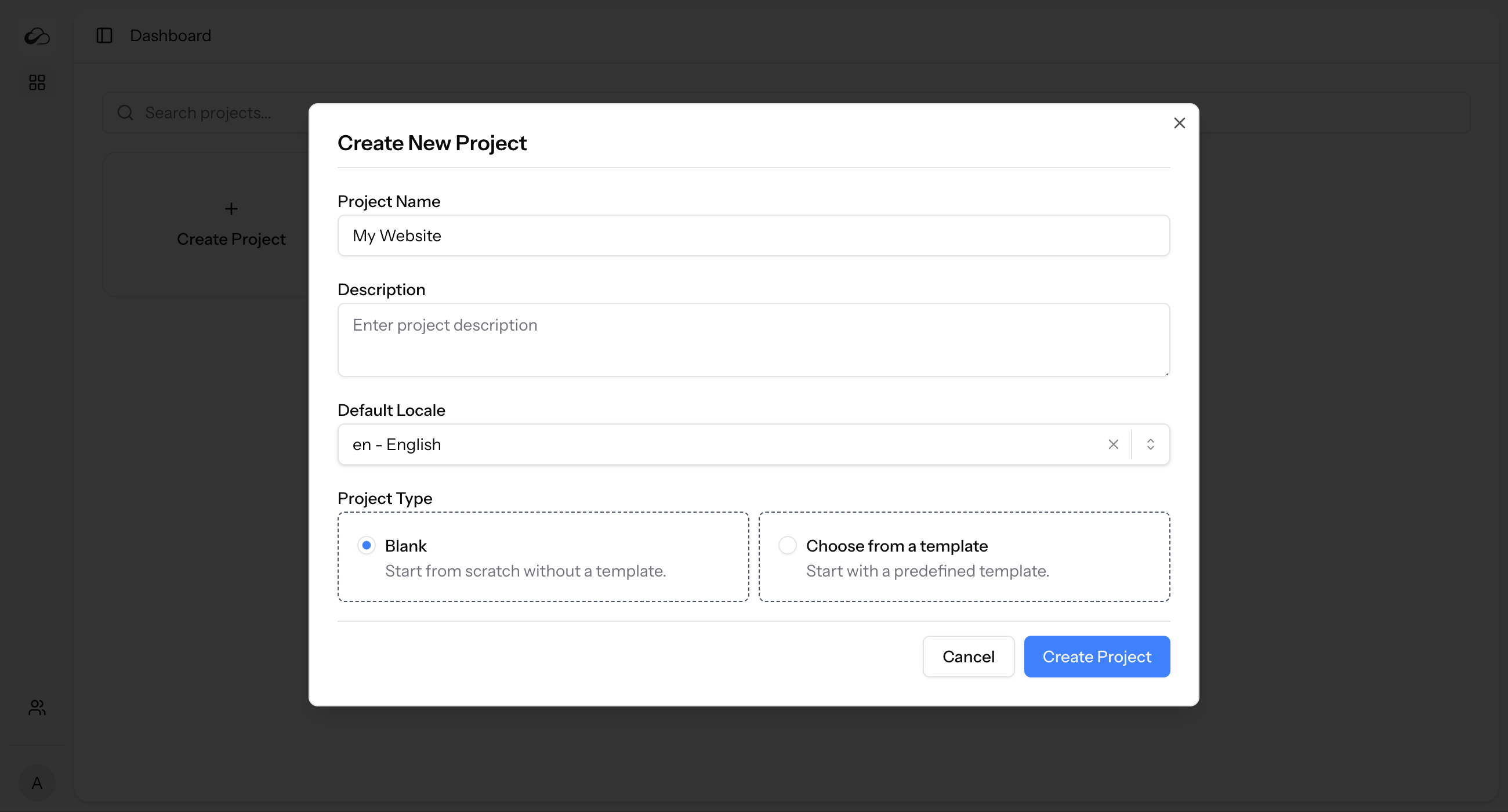
- On the dashboard, click the Create project card. This will open the "Create New Project" dialog.
- Fill in the required details for your new project.
Project Details
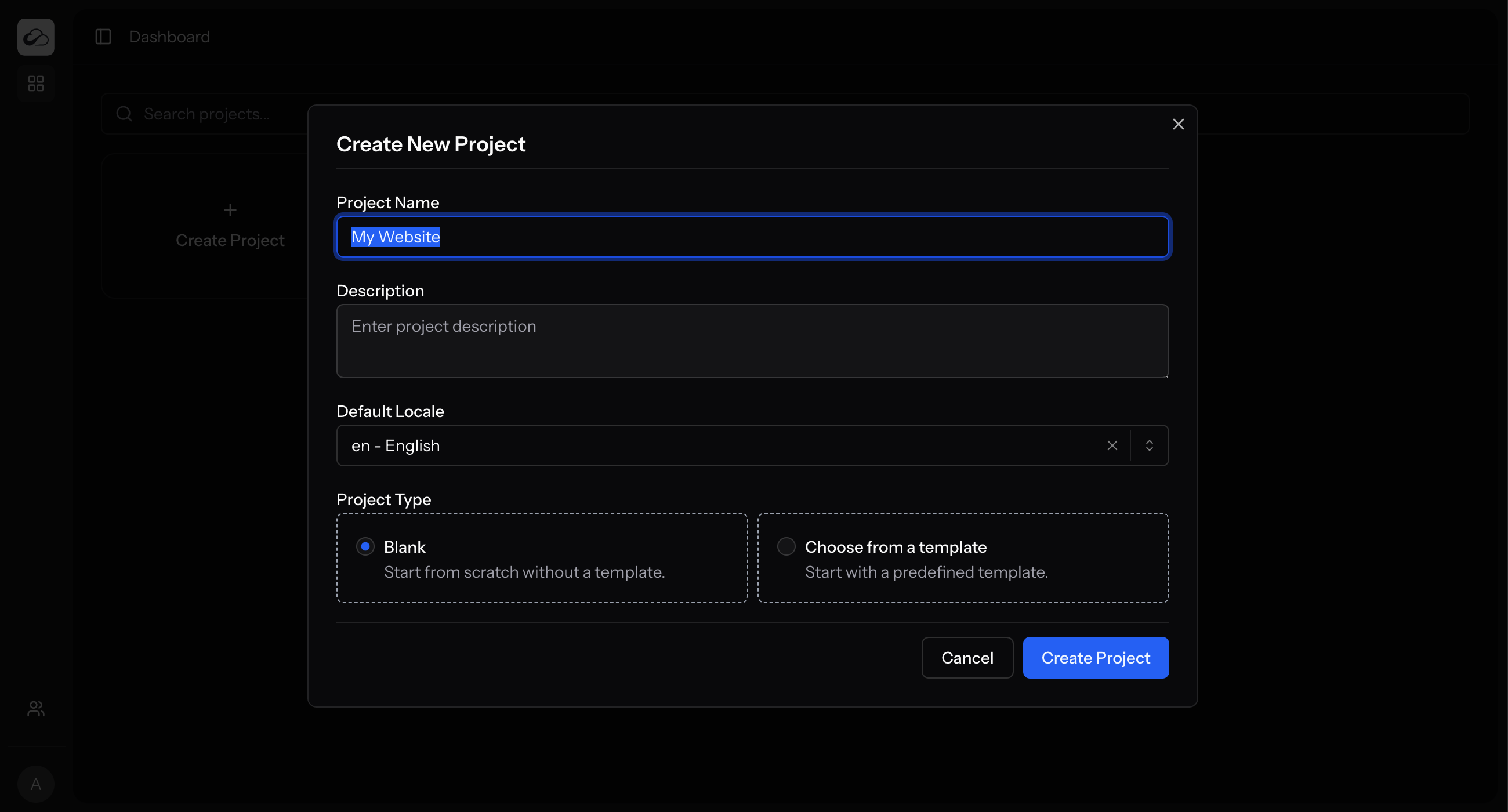
- Project Name: A descriptive name for your project (e.g., "Company Website", "Mobile App Content"). This is a required field.
- Description: An optional, more detailed description of what the project is for.
- Default Locale: The primary language for the project's content. This setting is important for localization and will be the fallback language if a translation is not available. The default is
en(English).
Project Type
You have two options for creating a new project:
- Blank Project: This option creates an empty project with no pre-configured collections. It is the perfect choice if you want to build your content structure entirely from scratch.
- From a Template: This option lets you start with a pre-defined set of collections. Use a template you saved from another project, a custom JSON template, or an imported project package. See Project Templates.
Using a Template
If you select "Choose from a template", two additional options will appear:
- Template: A dropdown list of available project templates. Select the one that best fits your needs.
- Include demo content: Some templates may come with sample content to help you understand the structure. If this option is available, you can check the box to import this demo content along with the collections. This is a great way to explore a new template.
Once you have filled in all the details, click the Create Project button. You will be redirected to the dashboard of your new project, where you can start building your collections.
Frontend starters
Looking for Next.js, Nuxt, or Astro frontends that talk to ElmapiCMS? Browse the Templates catalog on the website. Those packages include importable project data you can use after you create or import a project.