Adding Fields to a Collection
Fields define what data your collection stores and how editors interact with that data.
Follow the steps below to add new fields and tailor them to your needs.
1. Open the Collection Settings
- Navigate to your project's dashboard.
- In the sidebar collection list, click the gear icon ⚙️ to open Collection Settings.
- Inside the Fields panel click ➕ Add Field.
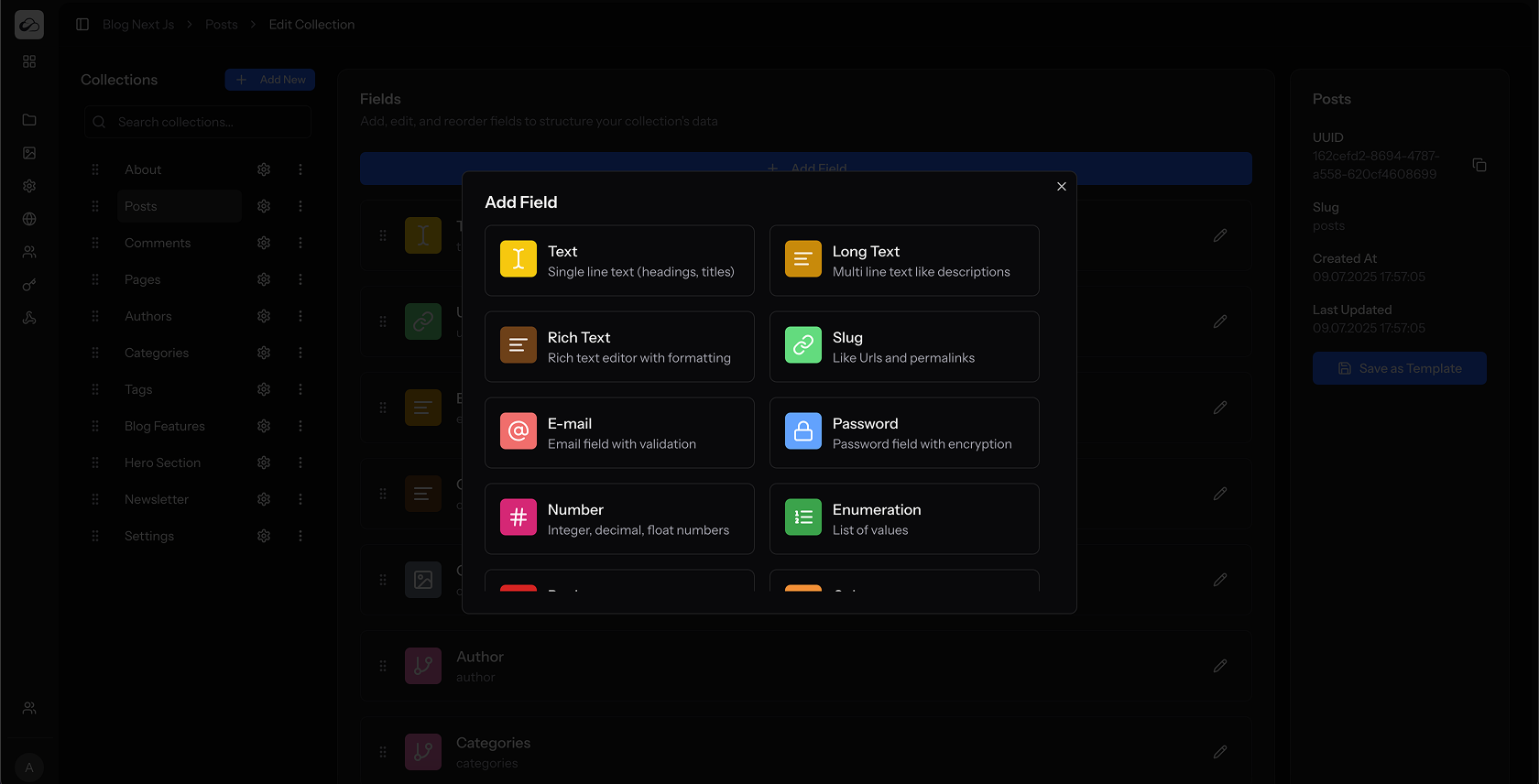
A modal displaying every built-in field type will appear.
2. Choose a Field Type
Each tile shows an icon, name, and short description for the field type. Click the type that matches the data you want to capture (see the Field Types reference for details).
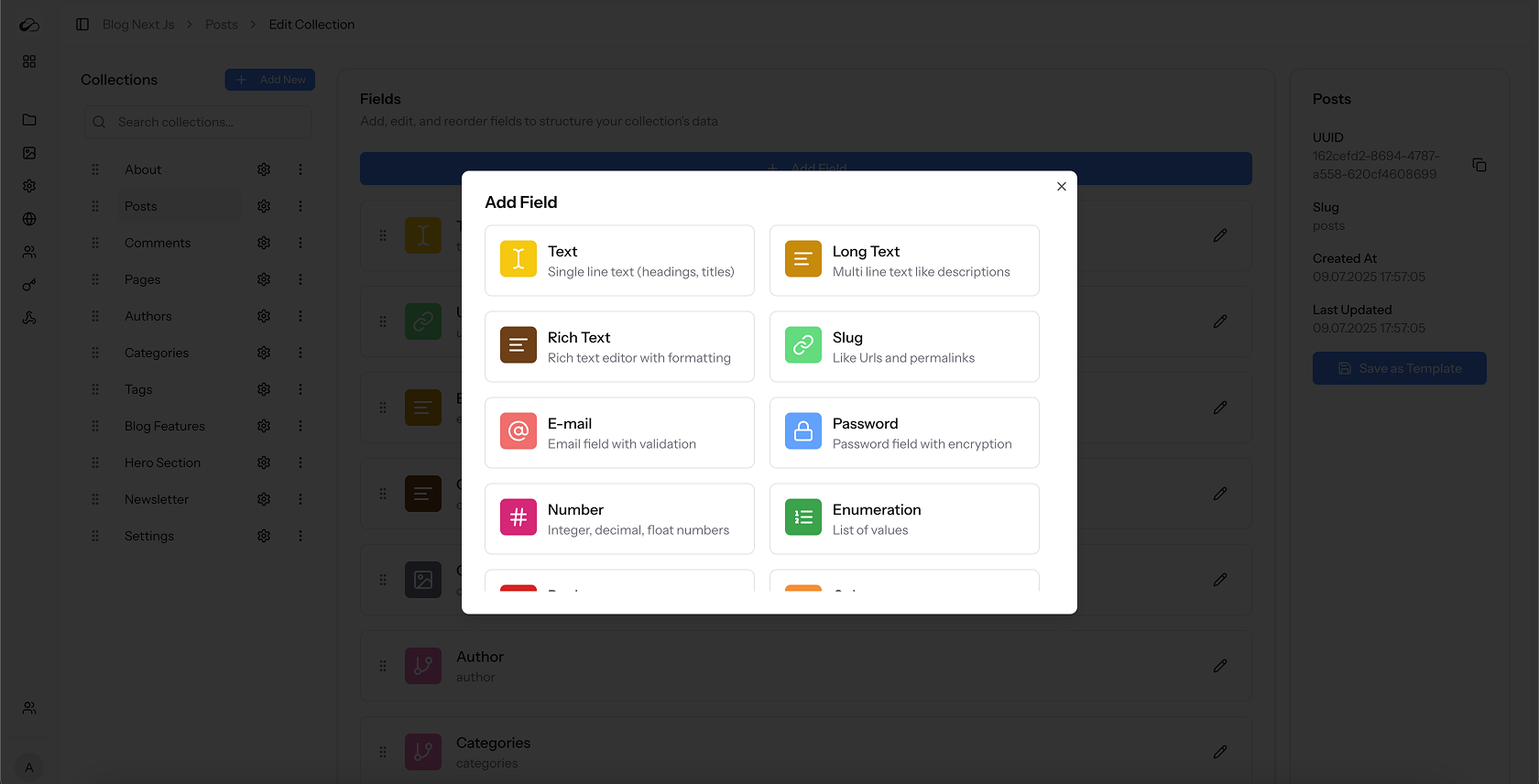
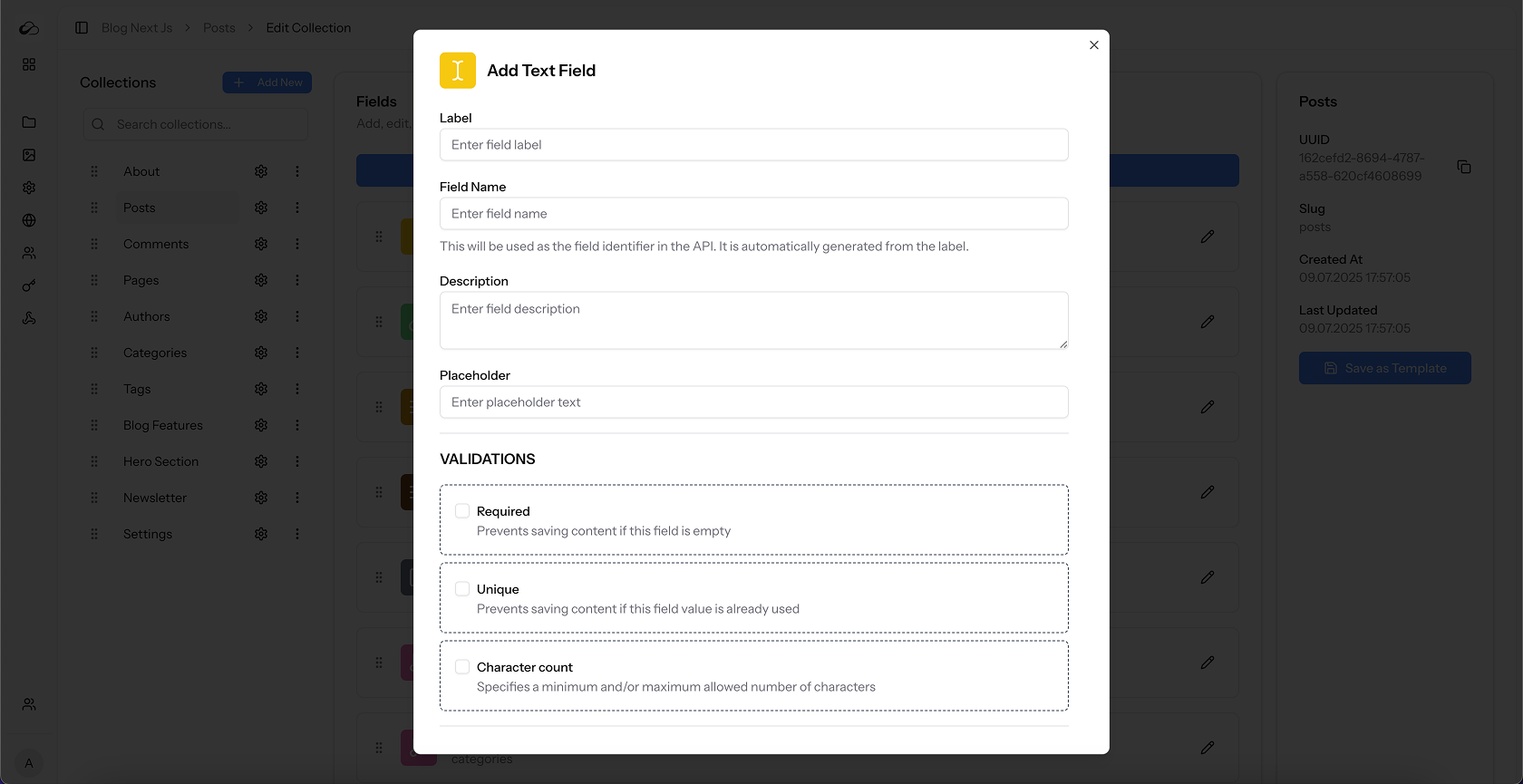
The Field Form modal opens for the selected type.
3. Fill in Basic Details
| Setting | Description |
|---|---|
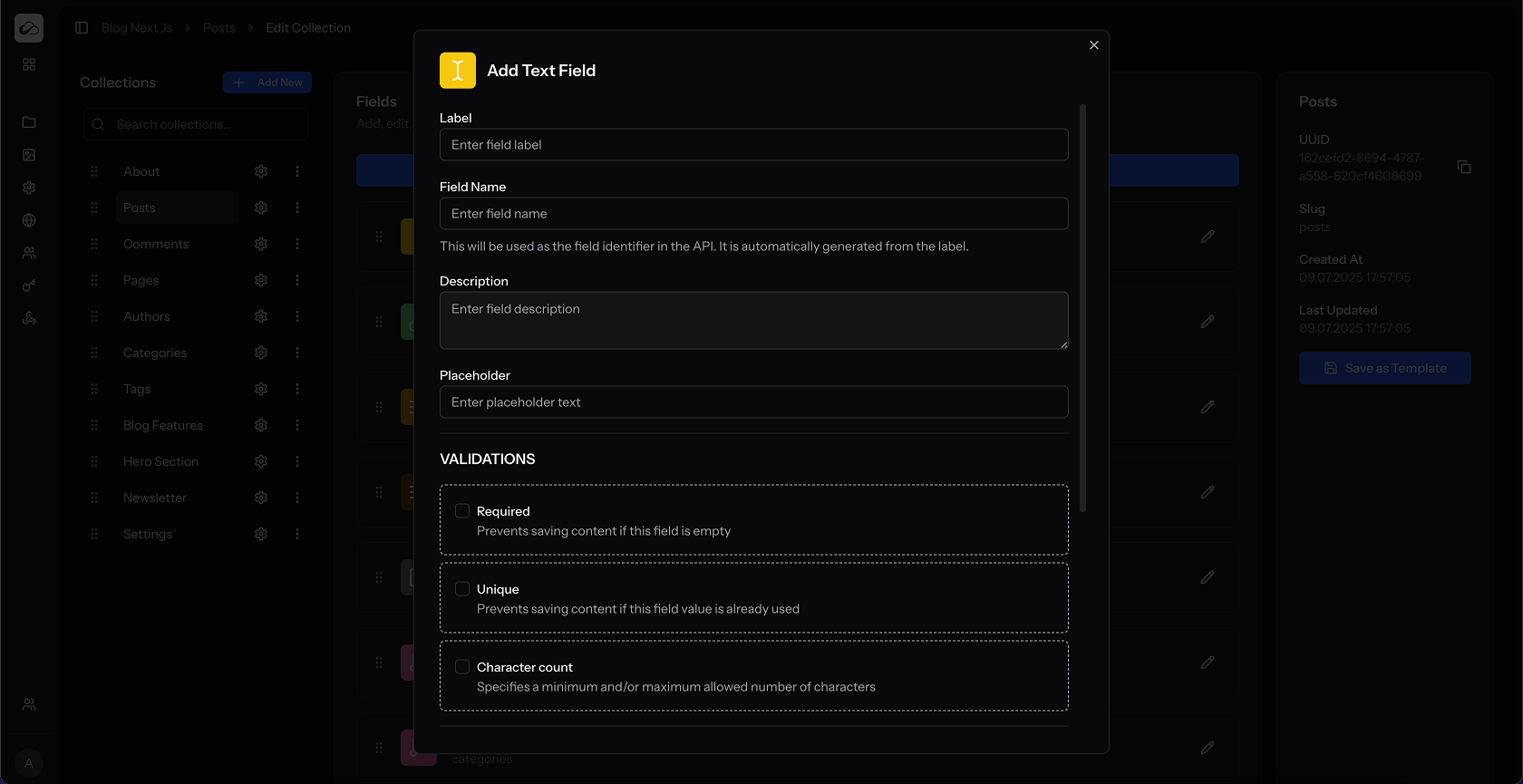
| Label | Human-readable name shown to editors (e.g. Post Title). |
| Slug / Name | Unique identifier used by the API – auto-generated from the label but editable. |
| Description | Helper text displayed under the input. |
| Placeholder | Grey placeholder text inside the input (where relevant). |
4. Configure Validation
- Required – entry cannot be saved without a value.
- Unique – value must be unique across all entries (disabled for repeatable & complex fields).
- Character / Number limits – choose Min, Max or Between and supply values.
- Type checks – Email, Number and Color fields always validate format automatically.
- Custom error messages – every rule provides a text box so you can override the default message.
See the full breakdown in Validation & Display Options.
5. Adjust Field-specific Options
Depending on the type you picked, extra controls appear:
- Repeatable – allow multiple values (Text, Number, Date…)
- Enumeration list / Allow multiple – add permitted values.
- Date – enable time picker or range selection.
- Media – switch between Single or Multiple file mode.
- Relation – pick target collection, relation type, include drafts.
- Slug – choose source field & make readonly.
6. Visibility & API settings
At the bottom of the form you’ll find global toggles:
| Toggle | Effect |
|---|---|
| Hide in content list | Removes the column from the collection’s entry list – handy for long text blobs. |
| Hidden in API | Excludes the field from REST responses – ideal for admin-only notes or secrets. |
7. Save the Field
Click Create to add the field. It immediately appears in the Field list where you can:
- Re-order via the drag-handle (⋮⋮).
- Edit by clicking the ✏️ icon.
- Delete a field from inside the edit modal’s Danger Zone.